3. Complete your first posting task
Goal: complete one task with one phone, one account and one video, then verify the result on the phone.
The TikMatrix route saves a TikTok draft. The IgMatrix route actually publishes an Instagram Reel. Choose a video suitable for the result you intend.
1. Prepare one video
- Create a new folder on your computer, for example
first-post. - Put one playable MP4 video in it and remember the folder location.
- Confirm the target app works and is signed in to the correct account. The device should be Ready, with no other task operating it.
Check: the folder contains only this video's file, and the phone is on the correct account.
2. Open the posting task
Select only one phone in Devices, then open Scripts → Post in the bottom toolbar. Check the platform and app package.
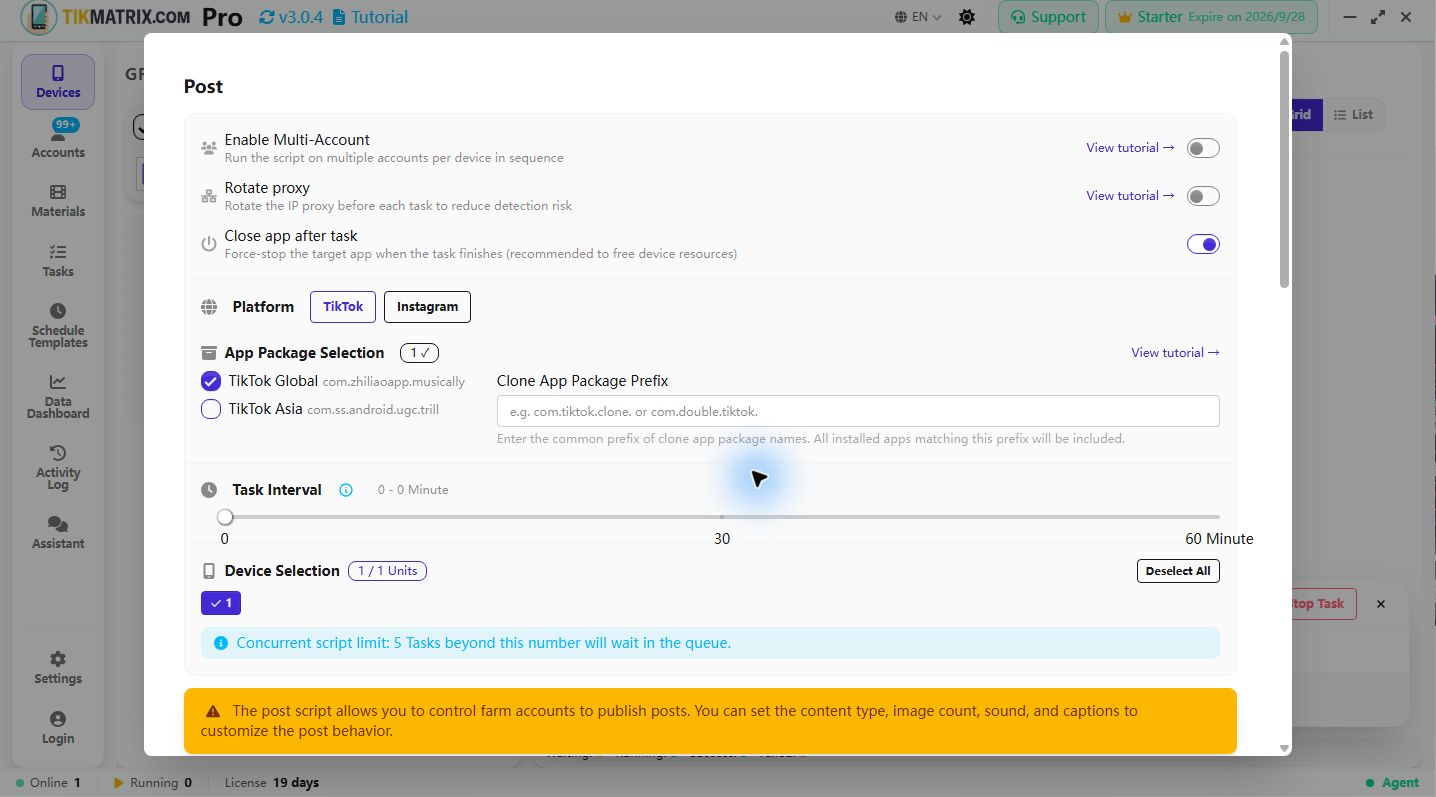
Use these settings. The app may remember previous values, so check each one.
| Setting | First-run value |
|---|---|
| Selected devices | Only 1 phone |
| Enable Multi-Account | Off; use the current phone account |
| Rotate Proxy | Off; use the connection on which the app already works |
| Task parameters | Custom |
| Start time | Start Now |
| Tasks per account | 1 |
| Post method | Add Button |
| Content type | Video |
| Material source | Local Folder |
| Material path | The folder you created, not the individual video file |
| Caption format | Multiline |
| Caption | One line, for example “A moment from today” |
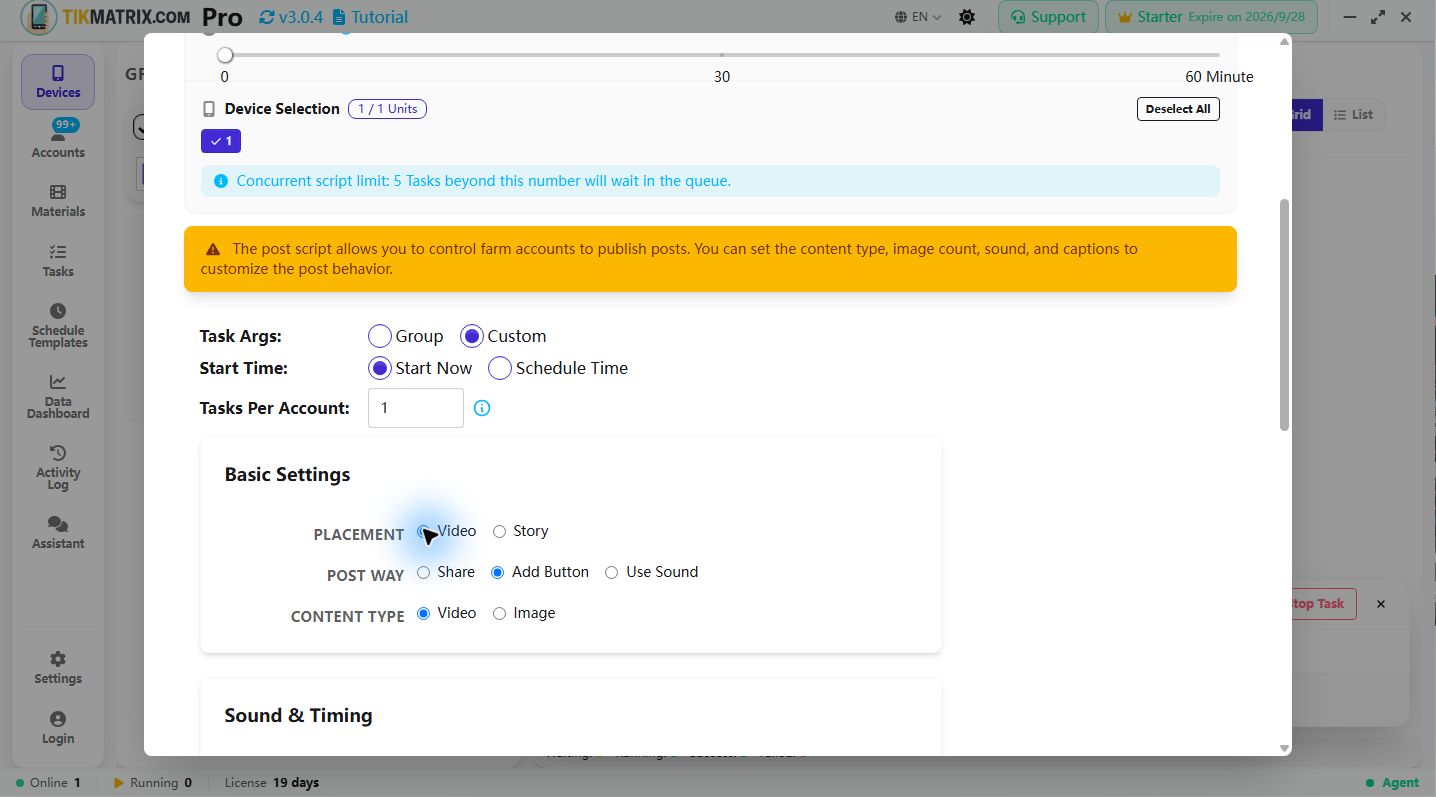
TikMatrix: save a TikTok draft first
- Placement: Video, not Story.
- Add sound: Disable.
- Save Draft: On. This is supported only for regular TikTok videos.
- Mark Material as Used: Off for this draft exercise, so the video remains available for the later publishing step. Recheck this setting before normal posting.
- Start with an upload wait time of 30–60 seconds.
Before starting: verify Save Draft is enabled. Otherwise, the task may publish the video.
IgMatrix: publish one Instagram Reel
- Placement: Reel.
- Turn off scheduled publishing for this immediate post.
- Start with an upload wait time of 30–60 seconds.
Before starting: this route publishes according to the account's current audience settings. It is not a draft exercise. Confirm the account, video and caption are ready to publish.
3. Run and verify
- Recheck the device count and tasks per account are both 1, along with the settings for your platform.
- Click Start Script once.
- Open Tasks to follow progress. Keep the phone connected and avoid operating the target app manually while it runs.
- After the task ends, check the actual result on the phone:
- TikTok: open Drafts from the profile and verify the video. The draft stays on that phone and has not been published.
- Instagram: open the video from the profile's Reels and verify the content and caption.
Done means the task result matches the content on the phone. Creating a task alone is not completion.
Stuck here?
| What you see | Try this first |
|---|---|
| No available material | Check Local Folder is selected, the folder path is correct, and it contains a playable video. |
| Task keeps waiting | Check Start Now, other tasks using the device, and license status. |
| App stops at a popup or verification | Read the task log and inspect the phone; complete required manual steps before deciding to retry. |
| Upload timeout | Check for an existing draft or post first. If none exists, check the network and increase the upload wait time. |
| Task failed but content exists | Verify that content before retrying to avoid duplicate posting. |
If you need support, include the app version, phone model, failing step, task error, and the screen where the phone stopped. Hide passwords and verification codes before submitting.
After success, expand one step at a time
- To publish on TikTok, check the content and turn Save Draft off, still using one phone first.
- For material management, music and scheduling, see the posting reference.
- To add phones, see device groups.
- To rotate accounts on a phone, see multi-account switching.
Add one setting at a time so you can identify what caused a problem.