1. 最初のスマートフォンを接続
目標:1台のスマートフォンをコンピュータ上に表示して操作すること。 デバイス接続とスクリーン制御は無料で利用できます。
まだインストールしていませんか?まずインストールと準備を完了してください。すでにスマートフォンを操作できていますか?アカウント準備に進んでください。
接続方法を選択する
ご自身のデバイスに対応するセクションだけをお読みください。まずは1台で始めましょう。
物理スマートフォン:USBから始める
- スマートフォンで設定 → 端末情報からビルド番号を探し、繰り返しタップして開発者向けオプションを有効にします。メーカーによって場所が異なりますので、設定内で「開発者向けオプション」を検索してください。
- 開発者向けオプションでUSB デバッグを有効にします。Xiaomi端末はUSB経由でのインストールと**USB デバッグ(セキュリティ設定)**も有効にしてください。
- スマートフォンのロックを解除し、データ転送対応のUSBケーブルでコンピュータに接続します。
- スマートフォンにUSBデバッグ許可のプロンプトが表示されたら、ご自身のコンピュータであることを確認して許可をタップしてください。
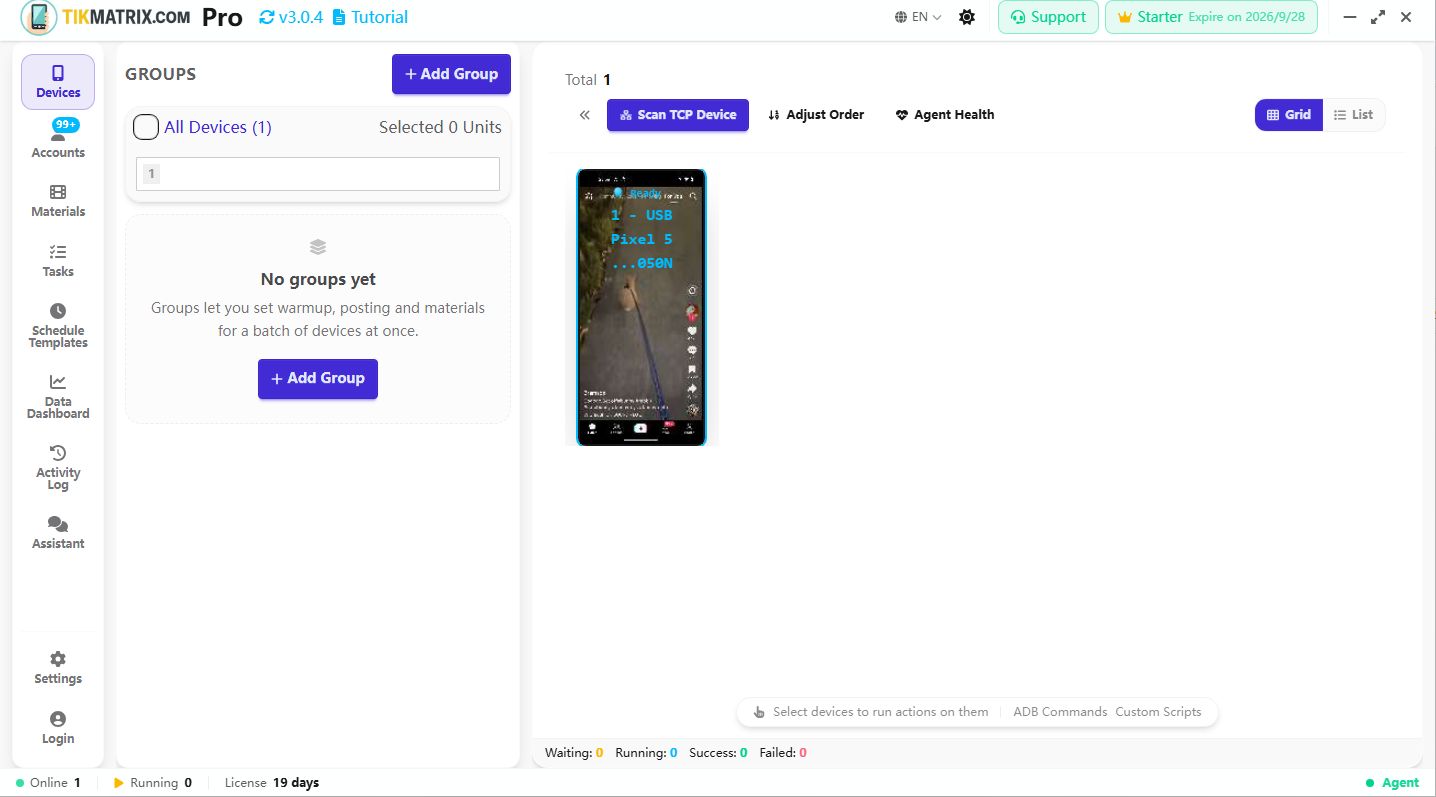
- デスクトップアプリのデバイスを開き、スマートフォンカードを待ちます。初回接続時、アプリはスマートフォンを制御するエージェント(UIAutomator2ヘルパー)を自動インストールします。インストールプロンプトが表示されたら指示に従ってください。
確認: スマートフォンカードと画面が表示されます。エージェント初期化後、カードは準備完了と表示されます。
クラウドスマートフォン:既存の接続情報を使用
- クラウドスマートフォン管理画面で1台起動します。ADBアドレス、ポート、およびプロバイダが必要な接続コードを取得します。
- TikMatrix / IgMatrixでスキャン TCP デバイス → クラウドスマートフォンリストを開きます。
- 追加をクリックして、名前、IPアドレス、ポート、接続コードを入力して保存します。プロバイダから提供された実際の詳細情報を使用してください。
- そのスマートフォン横の接続ボタンをクリックして、カードを待ちます。
確認: クラウドスマートフォン画面が表示され、初期化後に準備完了と表示されます。認証方法はプロバイダによって異なります。詳細はクラウド接続リファレンスを参照してください。
操作できることを確認する
- 左側のデバイス番号をクリックします。
- 選択数が1であることを確認してください。デバイス選択後、下部にGeneral / ADB Commands / Scriptsツールバーが表示されます。
- スマートフォンカードをダブルクリックして大画面を開きます。その画面で設定などの通常アプリを開いてみます。
確認: コンピュータをクリックするとスマートフォン画面が変わります。接続段階は完了しました。
うまくいかない場合
| 状況 | 最初に試すこと |
|---|---|
| スマートフォンは充電されていますがカードが表示されない | データ転送可能なケーブルを試し、コンピュータの直接USBポートに接続します。スマートフォンのロックを解除してデバッグプロンプトを確認してください。 |
| 許可を待機中 | スマートフォンでこのコンピュータのUSBデバッグを許可し、再接続してください。 |
| カードは表示されますが「準備完了」にならない | インストールプロンプトを確認して、エージェント初期化トラブルシューティングに従ってください。 |
| 画面は表示されますがクリックに応答しない | スマートフォンのロックを解除してください。Xiaomiの場合、USB デバッグ(セキュリティ設定)を確認してください。 |
| クラウド接続が失敗する | スマートフォンが起動していること、接続情報が最新であること、コンピュータからアドレスに到達可能であることを確認してください。 |
接続できたら、先へ進んでください。ワイヤレス接続、マザーボードデバイス、ADBキーの詳細は接続リファレンスを参照してください。