Screen Cast Settings
TikMatrix provides a small-screen and a big-screen casting mode and several options to tune image quality, on-screen size and behaviour. This page explains each option available in the Screen Cast Settings dialog.
Open Settings → Screen Cast Settings to find these options.
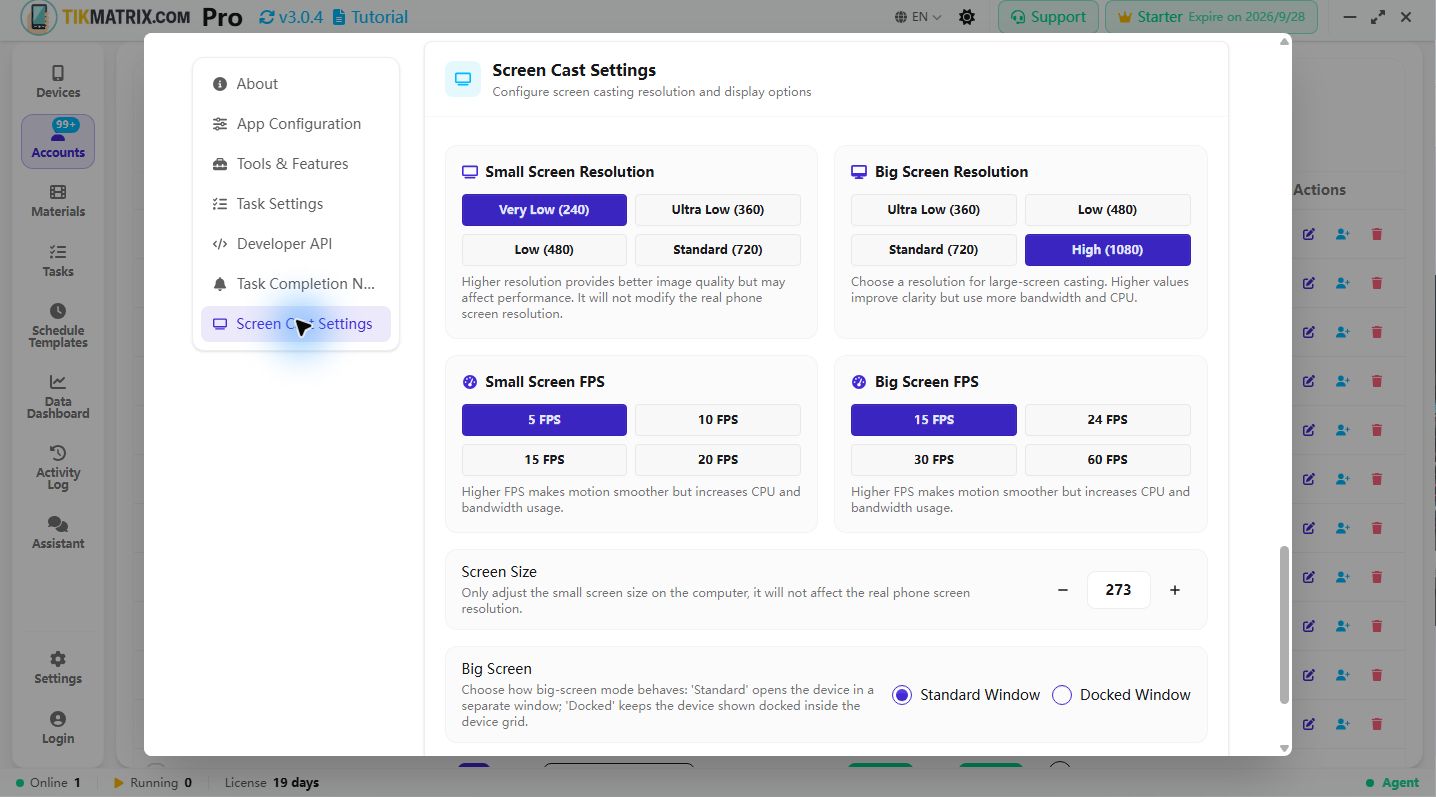
Small Screen Resolution
Small screen resolution controls the quality of the device view inside a single device card on the grid. Lower values use less CPU and bandwidth, higher values improve clarity.
Available presets:
- Very Low (240)
- Ultra Low (360)
- Low (480)
- Standard (720)
Choose a lower value if you run many devices on one machine or suffer from lag. Choosing a higher value may improve legibility for text and UI elements but consumes more resources.
Big Screen Resolution
Big screen resolution applies when you open a device in Big Screen mode (a larger floating window). It has its own set of presets to allow a higher quality view on stronger machines.
Available presets:
- Ultra Low (360)
- Low (480)
- Standard (720)
- High (1080)
If you regularly open a single device in Big Screen and want a crisp view, choose 720 or 1080. For low-end hosts, prefer 360 or 480.
Screen Size (Grid Card Size)
The Screen Size control adjusts the on-screen size of the small device view inside the grid. This setting only changes the rendering size on the computer — it does not change the real phone's screen resolution.
- Use the minus/plus buttons to decrease/increase the small screen card size.
- The numeric value represents pixels used for the card height and is clamped to sensible ranges to avoid extremely large or tiny cards.
Big Screen Mode
Choose how Big Screen behaves:
- Standard Window — opens the device in a separate floating window.
- Docked Window — keeps the device shown docked inside the device grid (useful when you want it visible while keeping the grid layout).
Use Docked when you prefer devices to stay within the grid and Standard when you want a free-floating large view.
Screen-Off Cast
When enabled, the phone's screen will be turned off while casting. This saves battery, reduces device heat, and often improves stability for real-device casting.
Notes:
- This feature only affects the physical device screen — it does not change the image sent to the computer; the computer still receives the cast stream.
- Some devices or ROMs may not fully support screen-off behaviour; test on a sample device before applying at scale.
Tips and Recommendations
- For large farms, prefer smaller small-screen resolutions (360 or 480) to reduce CPU and bandwidth per device.
- Use High (1080) for demo or inspection work where one device needs to be inspected closely.
- If you see streaming instability when switching resolutions, try toggling hibernate casting off, then back on, or restart the scrcpy session for that device.
Where to find these settings
Click the Settings button in the title bar (top-right of the application window) to open the unified Settings page. Scroll down to the Screen Cast Settings section to access and change these values.
FPS Settings
FPS controls the frame rate of screen casting. Higher FPS provides smoother motion but increases CPU and bandwidth usage.
Available presets:
- Small screen: 5 / 10 / 15 / 20 / 30 FPS
- Big screen: 15 / 24 / 30 / 60 FPS
Use lower FPS for large device farms and higher FPS when you need smoother animation on focused devices.
If you need a localized version of this guide, switch the site language using the language selector in the top-right corner.